How to Organize Your Small Business
New Year, New Workflow
There’s something about the start of a new year that makes us want to reset everything, our inboxes, our schedules, our closets… and especially our workspaces.
If you’ve ever tried to decorate cookies in a cluttered kitchen, you know the feeling. You can’t find the right cutter, you’re out of bags without realizing it, inspiration photos are buried in a DM somewhere, and suddenly a simple order feels ten times more stressful than it needs to be.
A cluttered space often leads to a cluttered mind.
But organization isn’t just about making things look pretty. It goes far beyond neatly stacked boxes and labeled bins. In a baking business, organization means knowing what supplies you have on hand, where your orders live, what needs to be restocked, and what’s coming up next (without relying on sticky notes, screenshots, or memory.)
The good news? A few simple systems can completely change the way your workflow feels.
In this post, we’re walking through how to organize not only your packaging and baking supplies, but also your orders, inventory, and digital workspace so you can start the year feeling calm, confident, and ready for the new year!
Take Inventory (and Actually Keep Track of It)
Before we talk about bins, labels, or pretty storage containers, let’s talk about the most important part of organization: knowing what you actually have.
I’ll be honest, I love cooking, but I hate deciding what I’m going to make for dinner.
Every night it’s the same conversation:
“What do you want for dinner?”
“I don’t know… what do you want?”
So I did what I do best and turned to my answer for almost everything: a spreadsheet.
I made a simple list of meals and color-coded it by how long they take to cook, what ingredients I have, and how complicated they are to make. Now when we can’t decide what to eat, I just open the sheet and filter by how much time I have. Decision made in seconds. No more rattling off things I think are in the freezer or saying "nah we had that last week, what else is there?" for an hour.
And that’s exactly why spreadsheets are so powerful for your baking business.
When it comes to supplies, guessing is expensive. Running out of bags the night before a pickup is stressful. Over-ordering boxes “just in case” ties up money and storage space. The solution is a simple system that shows you what you have, what’s running low, and what needs to be reordered.
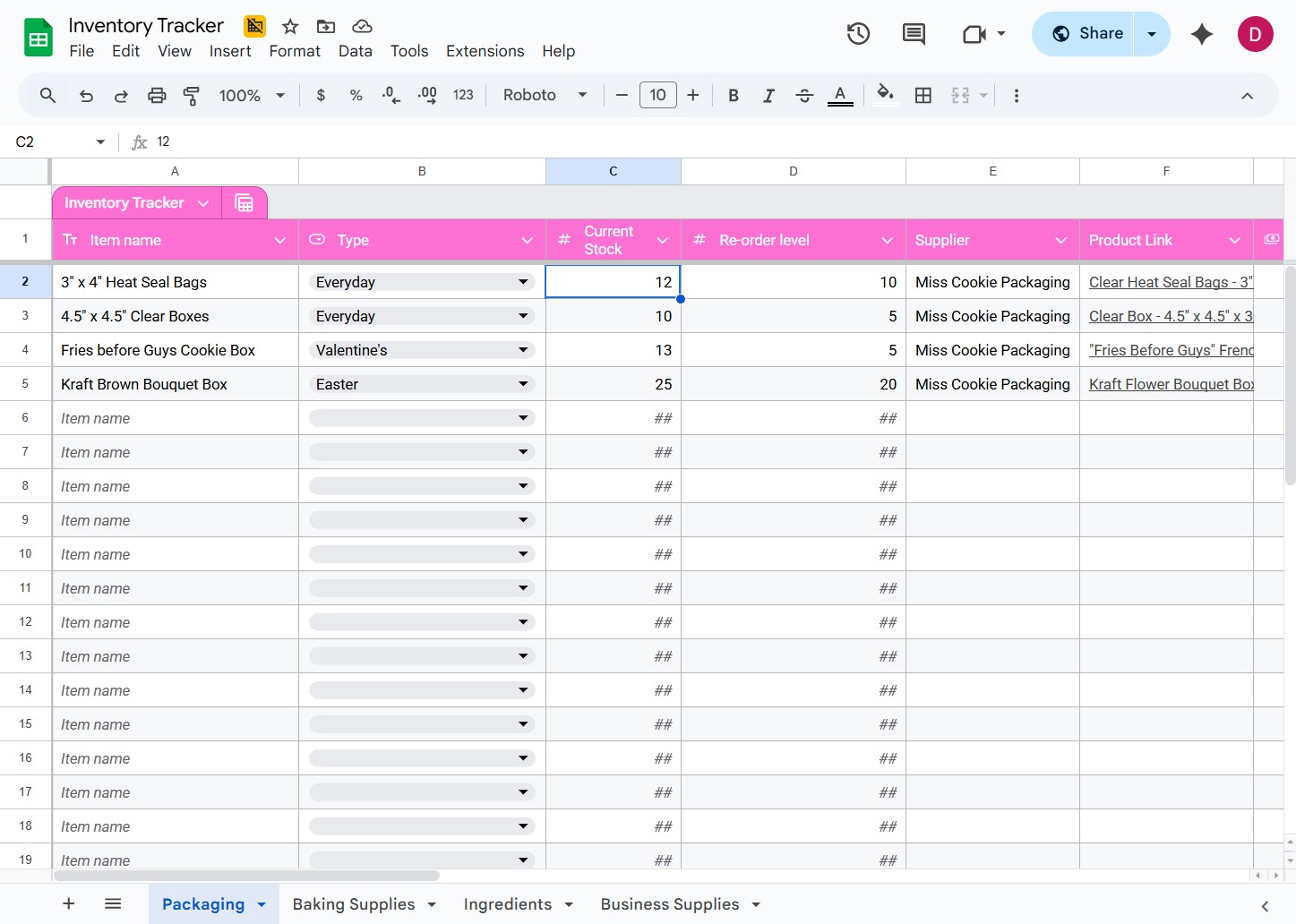
That’s why I created a free inventory tracker you can use to organize all of your baking supplies in one place.
Separate Sheets
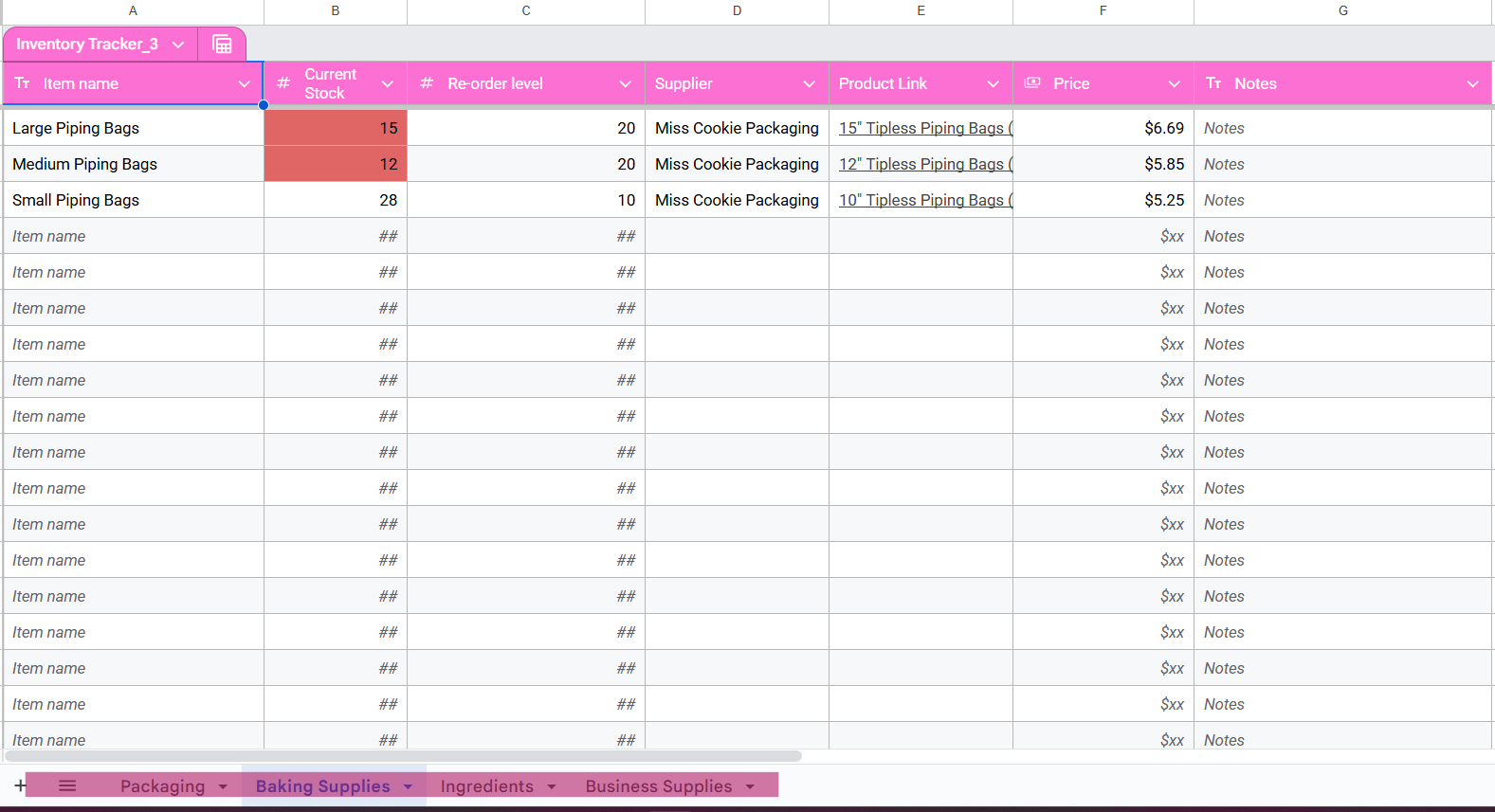
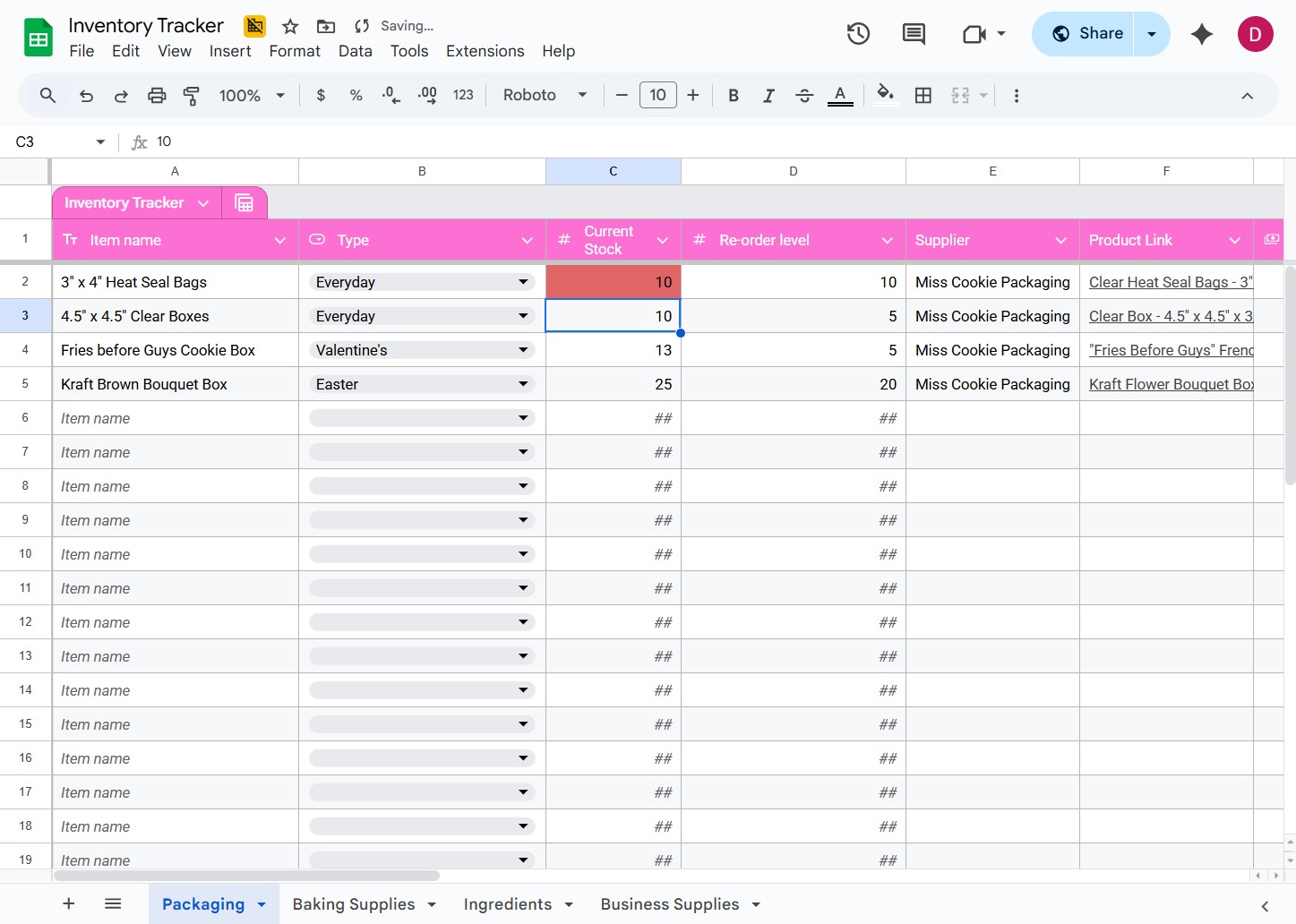
Our tracker includes four separate sheets so you can organize by category:
- Packaging
- Baking supplies & tools
- Ingredients
- Business supplies
Instead of one long overwhelming list, everything has its own home.
Built-In Low Stock Alerts
We also formatted the spreadsheet to do a little bit of the thinking for you.
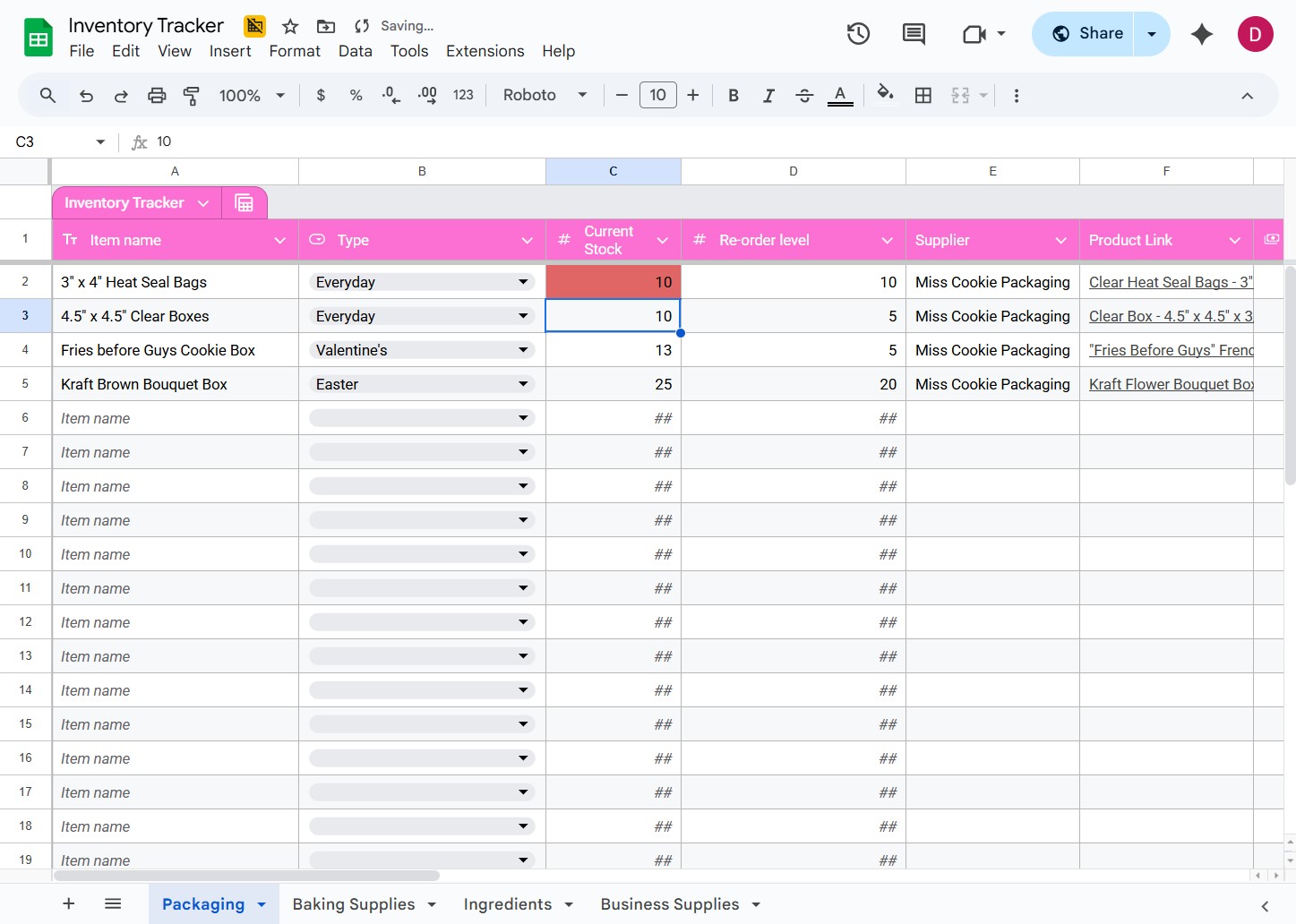
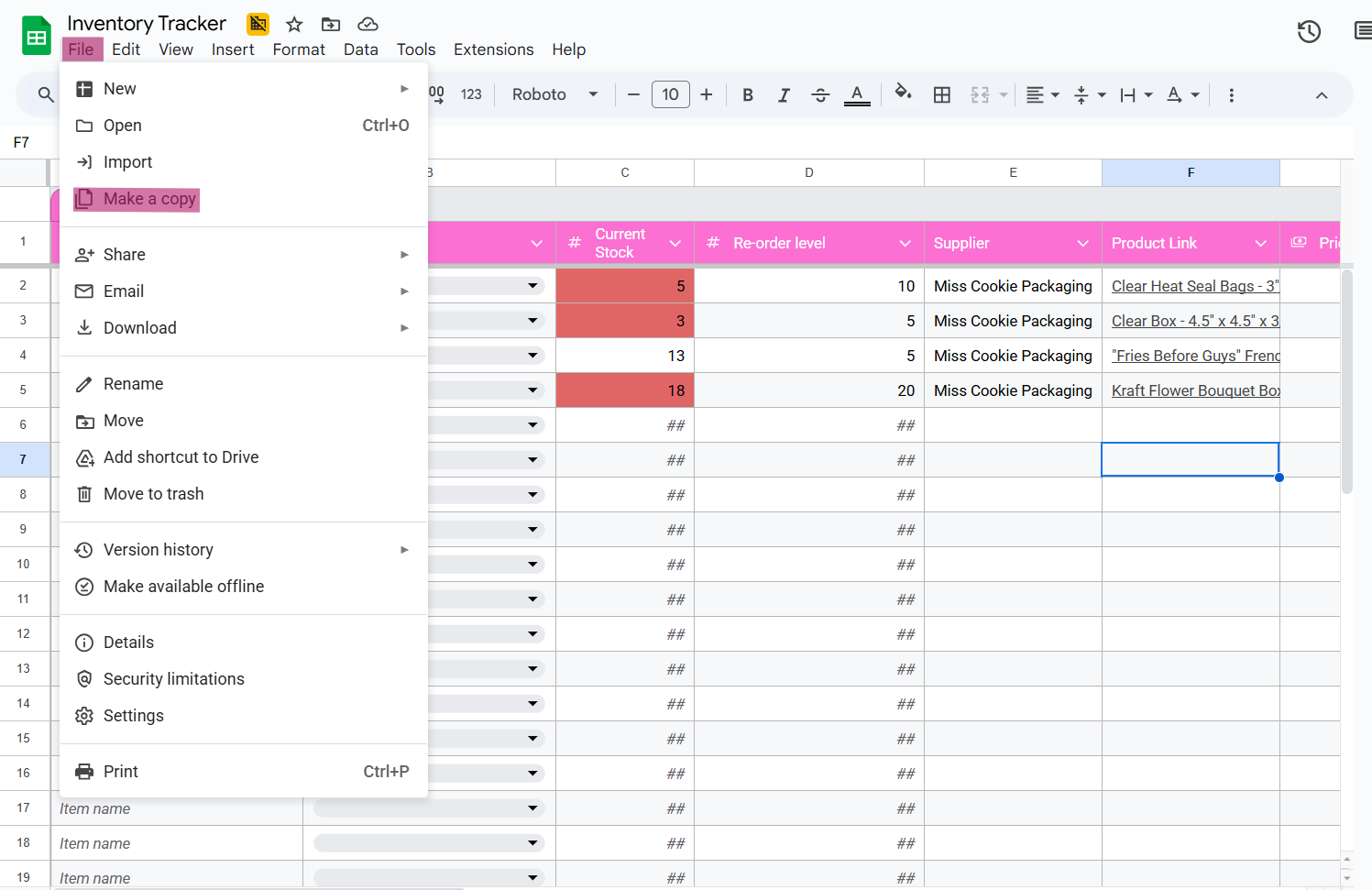
In the “Current Stock” column, the cell will automatically turn red when your quantity drops below the number you enter in the “Reorder Level” column.
For example:
If you always want to reorder clear bags when you hit 25, just type “25” in the reorder column. Once your stock drops to 25 or lower, that row will turn red to remind you it’s time to restock.
No formulas to write. No math to do. Just a simple visual reminder that helps you stay ahead of supply emergencies.
How to Use the Inventory Spreadsheet
You don’t need any special software or spreadsheet experience to use this.
All you have to do is:
- Sign into your Google account
- Click the link to open the spreadsheet
- Go to File → Make a copy
That’s it.
Google will create your own private, editable version that you can customize however you like. You can change colors, rename sheets, add columns — make it work for your business.
Get Your Orders Out of DMs and Into One Place
If inventory is the foundation of an organized baking business, your order system is the backbone.
And if you’re just getting started (or even if you’ve been doing this for years) there’s a good chance your orders live in a lot of different places.
Some in Instagram DMs.
Some in emails.
Some in texts.
Some written down in a notebook.
Some… living only in your head.
This works for a little while, until it suddenly doesn’t.
Missed details, forgotten dates, double-booked weekends, and endless scrolling trying to find “that one message with the inspiration photo” — it’s exhausting, and completely avoidable.
The single best thing you can do for your workflow is make sure all of your orders live in one place.
Why Having One Order System Changes Everything
When every order is collected and stored the same way, a few magical things happen:
You stop losing important details
You can see your schedule at a glance
You avoid booking too many orders for the same day
You spend less time searching and more time baking!
A Simple (Free) Upgrade: Using a Google Form for Orders
One of the easiest ways to organize orders is using a Google Form connected to a Google Sheet.
Instead of taking custom orders through DMs, you can send customers a link where they fill out:
Their contact info
Event date
Quantity
Theme and colors
Inspiration photos
Packaging preferences
- Anything that will help YOU
If you're using automated responses for your social media pages or emails inquires, you can send the link right there!
Once they submit the form, their order automatically shows up in a spreadsheet.
No copying and pasting.
No screenshots.
No missed messages.
Everything lives in one clean, searchable dashboard.
You can even make a QR code for your order form for free and print it on business cards, stickers, labels, inserts, anything!
When customers have to type in an email address, search for your social media account, or wait for a reply in DMs, there are a lot of chances for things to go wrong; messages can land in spam folders, get stuck in message requests, have address typos, or simply get forgotten.
The easier you make it for someone to reach you, the more likely they are to actually place an order.
How to Create a Simple Order Form with Google Forms
Once you decide to collect all of your orders in one place, the next step is creating an order form. One of our favorite free tools for this is Google Forms.
If you’ve never used Google Forms before, don’t worry, it’s much easier than it sounds, and you don’t need any technical experience to get started.
1) Create Your Form
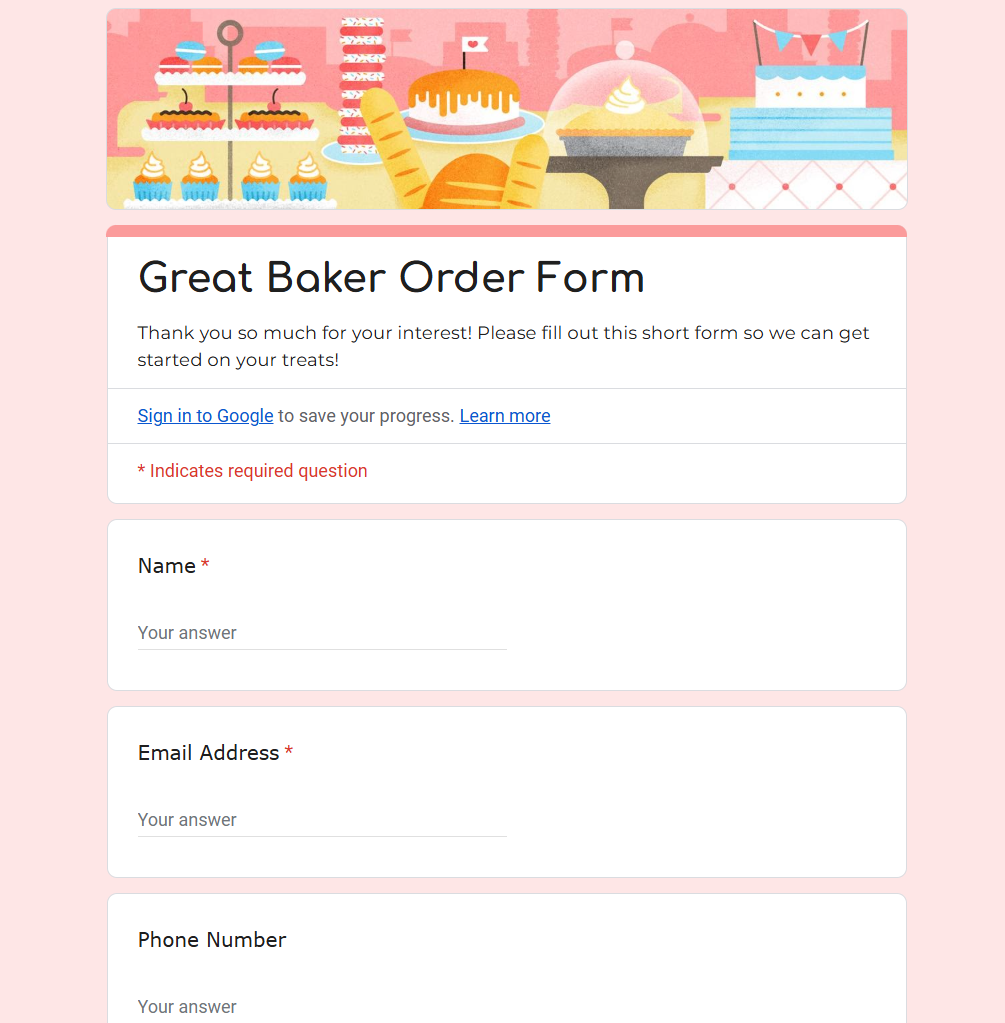
To start, go to forms.google.com while logged into your Google account and click “Blank” to create a new form.
At the top, give your form a name like:
“Custom Cookie Order Form” or “Order Inquiry Form”
You can also add a short description letting customers know what the form is for and when they can expect a response.
Step 2: Customize It to Match Your Brand
One of the best parts of Google Forms is that you can style it to match your business.
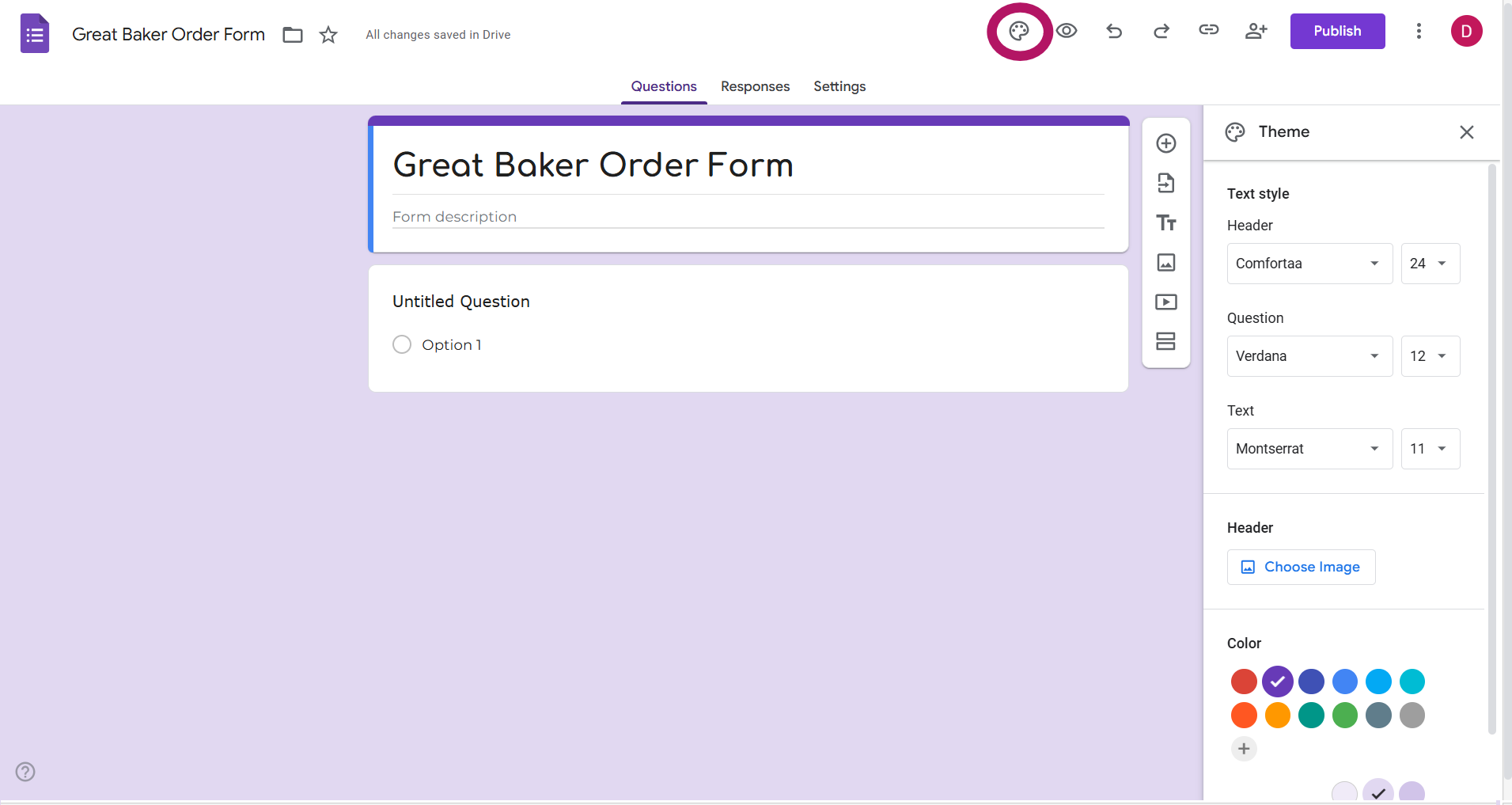
Click the paint palette icon at the top to:
Change the form colors to match your brand
Choose a font style
Upload a cover photo or logo for the header
This makes your order form feel professional and on-brand instead of plain and generic.
Step 3: Add Your Questions (and Make Important Ones Required)
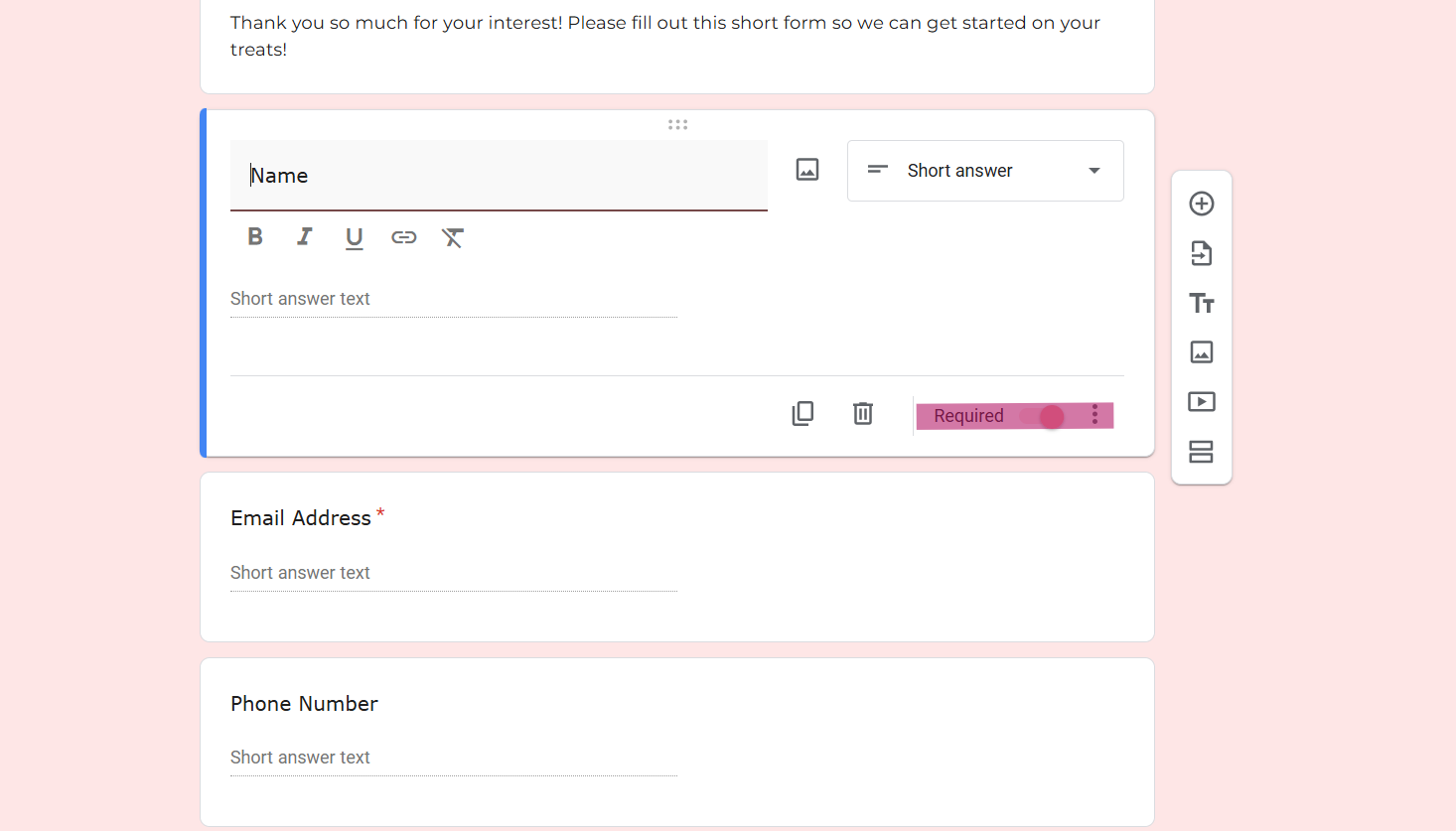
As you add questions, make sure the most important ones are marked as Required — things like:
Name
Email address
Due date
Quantity
This helps prevent incomplete orders and missing details.
Pro Tip: It’s tempting to require a phone number, but we actually recommend making this optional. Some customers simply won’t place an order if they think they’re going to get a phone call.
Instead, try:
Making the phone number optional
Adding a question like “Preferred method of contact” with options such as:
Email
Text
Phone call
This lets customers choose how they’re most comfortable being contacted, and helps you avoid accidentally scaring away an order.
Step 4: Connect Your Form to a Spreadsheet
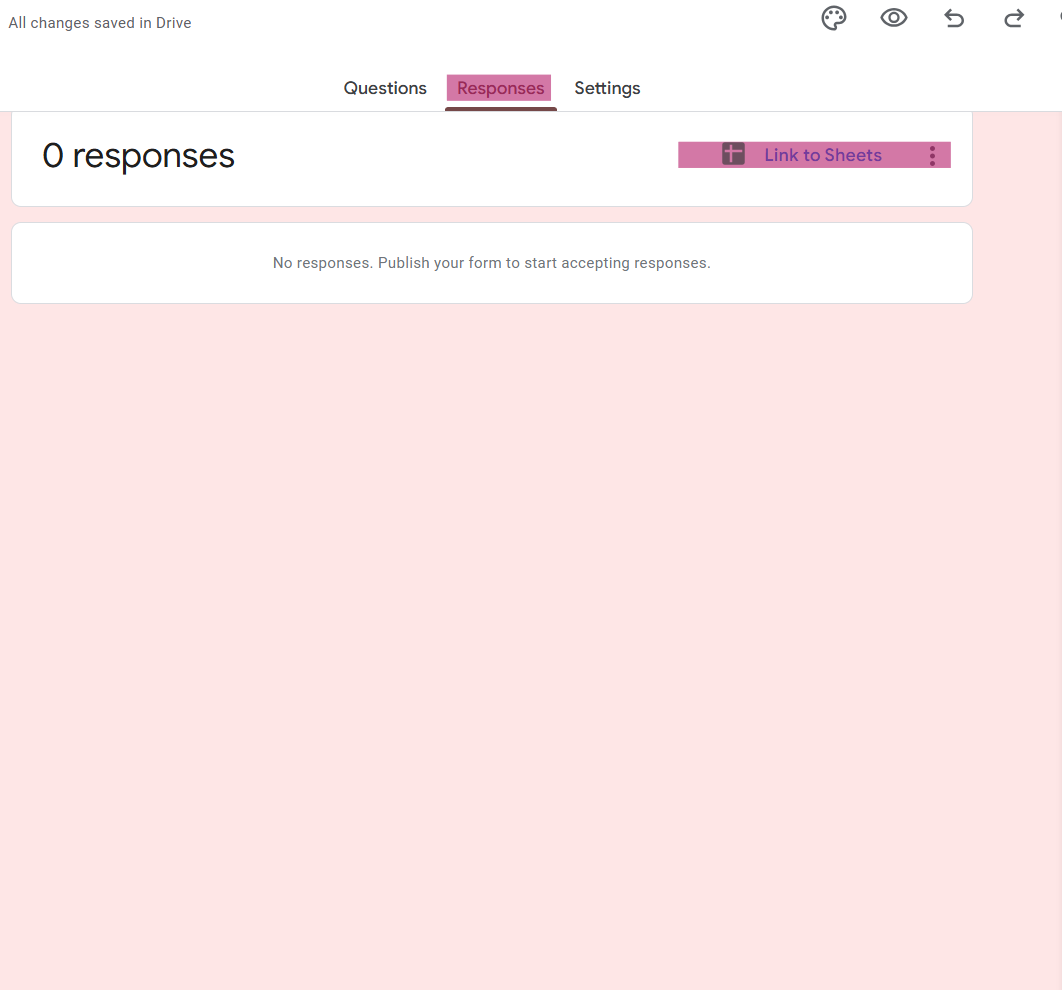
This is where the magic happens. At the top of your form, click the Responses tab, then click the green spreadsheet icon.
Google will automatically create a linked Google Sheet where:
Every new order appears in its own row
All answers are saved and organized
Nothing gets lost in emails or DMs
This becomes your live order dashboard that updates itself every time someone submits the form.
With just a few clicks, you can sort and filter your spreadsheet by order date, quantity, due date — anything you need. Simply hover over the column header you want to organize, click the filter icon, and choose how you’d like to view your orders.
It’s an incredibly simple way to see what’s coming up next, spot busy weekends, and stay on top of your schedule without scrolling through messages or emails.
Step 5: Set Up Email Collection the Right Way (This One Is Important!)
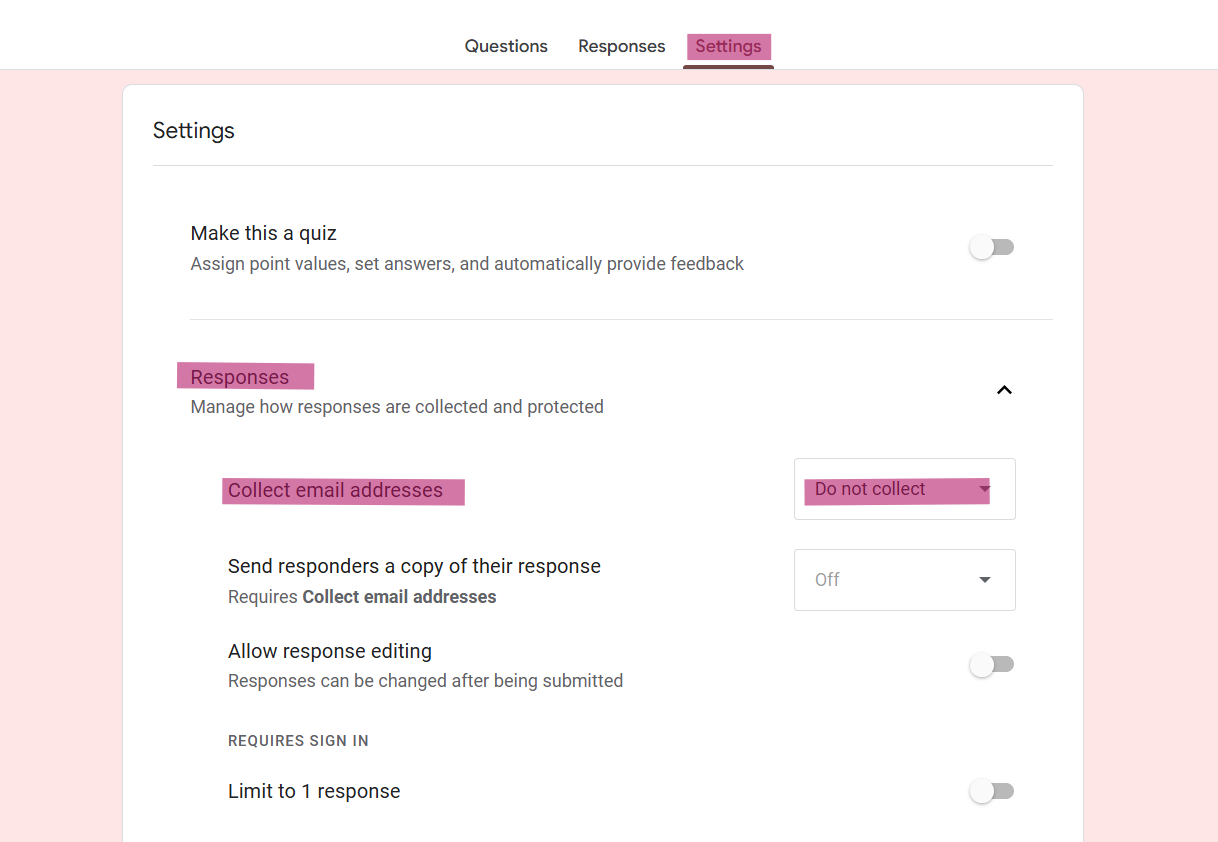
Before you send your form to anyone, click the Settings icon at the top of your form and look for the option that says “Collect email addresses.”
We recommend leaving this turned OFF and instead adding an “Email Address” question to your form and making that question required.
Here’s why:
If “Collect email addresses” is turned on, Google will only allow people who are logged into a Gmail account to submit your form. Customers using Yahoo, Outlook, work emails, or other providers may not be able to finish the form, and that means lost orders without you ever knowing.
By adding your own email question instead, anyone can place an order no matter what email service they use. It’s a small setting that makes a big difference in keeping your form accessible to all customers.
Step 6: Customize Your Confirmation Message
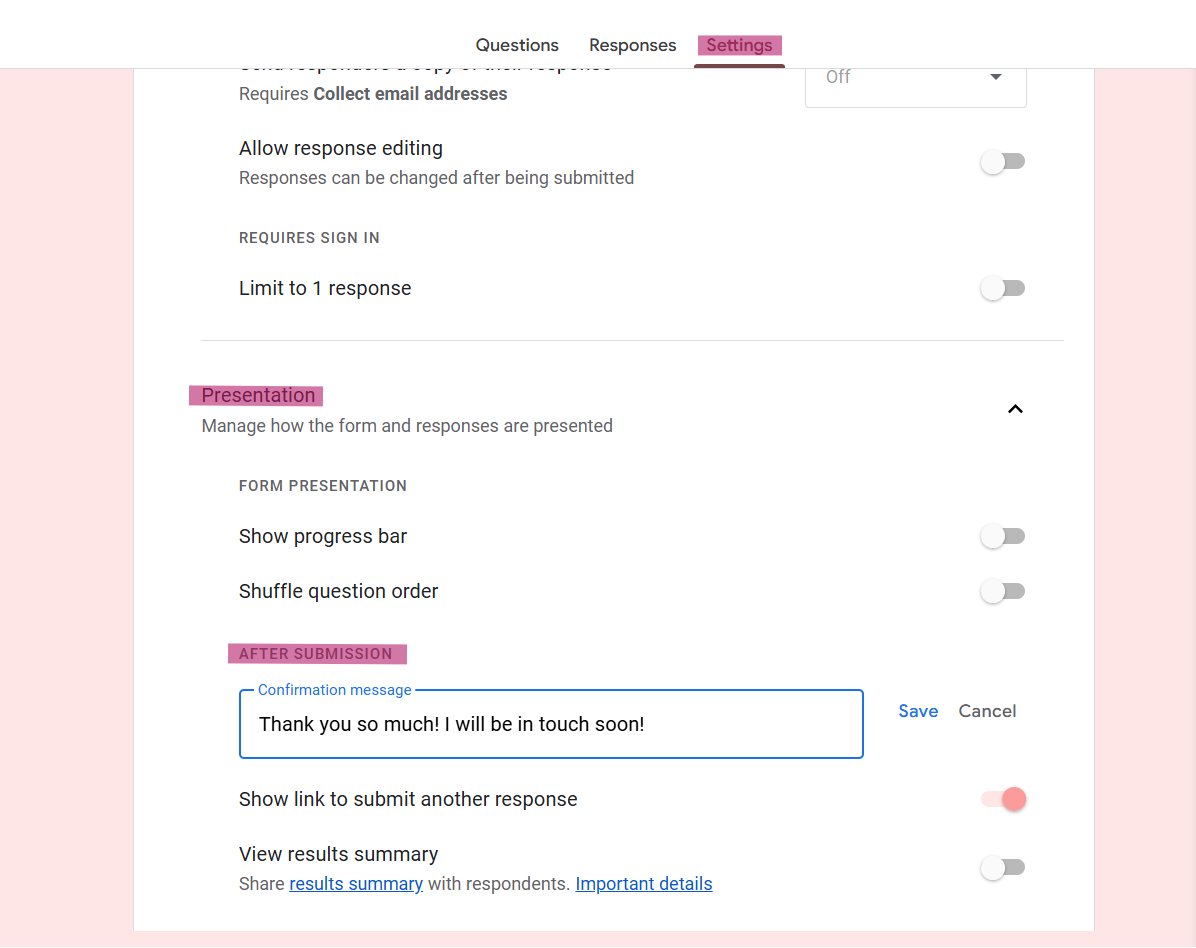
Once your form is complete, click the Settings icon and then go to the Presentation tab.
This is where you can customize the message customers see after they submit your form, and this is a great place to set expectations and reassure them that their order request went through.
Instead of leaving the default “Your response has been recorded,” we recommend writing a friendly confirmation message such as:
“Thank you so much for your order request! We’ve received your submission and will be in touch via your preferred contact method within 1–2 business days.”
You can adjust this to match your business tone and response time. This simple message does a few important things:
Confirms the form submitted successfully
Lets customers know when to expect a response
Reinforces how you’ll be contacting them
It’s a small detail, but it instantly makes your business feel more professional and helps reduce follow-up messages asking if you received their order.
Step 7: Share Your Form the Right Way
Once your form is finished and you hit "Publish," it’s time to share it with customers.
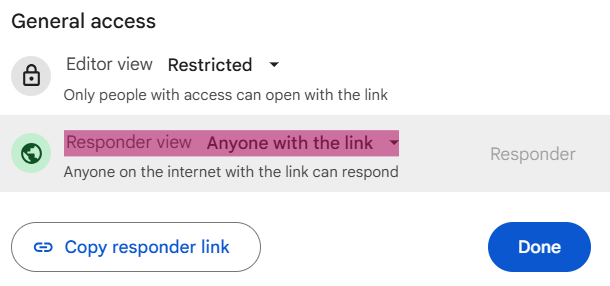
Click the Share button at the top of your form and then click the link icon to get your form link. This is called your responder link, this is the link you’ll send to customers, add to your website or bio, and turn into a QR code.
Before you start sharing it, there is one very important thing to check.
Make sure your form is set so anyone can respond and that no sign-in is required. You want customers to be able to open and submit your form without needing a Google account or logging in.
If a customer clicks your link and sees a sign-in screen or an access error, there’s a very good chance they’ll give up and move on.
Your goal is to make placing an order as easy as possible!
When You’re Ready to Level Up
Google Forms and Google Sheets are an amazing free option when you’re just getting started or building your systems for the first time. They’re flexible, easy to customize, and perfect for learning what works best for your business.
But as your baking business grows, you may find yourself wanting something a little more streamlined.
Once you’re managing a higher volume of orders, sending invoices, tracking payments, scheduling pickups, and communicating with customers, juggling multiple spreadsheets can start to feel like a full-time job on its own.
That’s where dedicated order management tools come in.
We’re lucky to have a friend in the baking community who created MyCustomBakes, an order management app designed specifically for bakers and custom treat businesses.
MyCustomBakes lets you:
Collect order requests through a professional order form
Automatically organize orders in one dashboard
Send invoices and accept payments
Track order status and pickup dates
Manage your calendar and availability
It’s a great option for bakers who are ready to move beyond spreadsheets and want an all-in-one system built just for custom orders.
Google Forms is a fantastic place to start. MyCustomBakes is a wonderful next step when your business grows and you’re ready for something more powerful.
The most important thing isn’t which tool you use, it’s that you choose a system that keeps your orders organized, your schedule clear, and your stress level low.
Organize Your Physical Workspace
Now that you’re mentally organized, have a running inventory, and know what orders and markets you have coming up next, let’s get your workspace organized too.
Because even with the best spreadsheets and order systems in the world, it’s hard to feel calm and creative when your kitchen looks like a cookie explosion.
Boxes stacked on the counter.
Cutters buried in drawers.
Sprinkles hiding behind food coloring.
That one piping tip you know you own but can never find when you need it.
Physical clutter adds more stress than we realize. Every time you stop to search for something, wipe down a surface again, or reorganize in the middle of decorating, it slows you down and drains your energy.
The goal here isn’t to have a Pinterest-perfect bakery. The goal is to create a space that works with you, not against you.
Start by Creating Simple “Zones” in Your Workspace
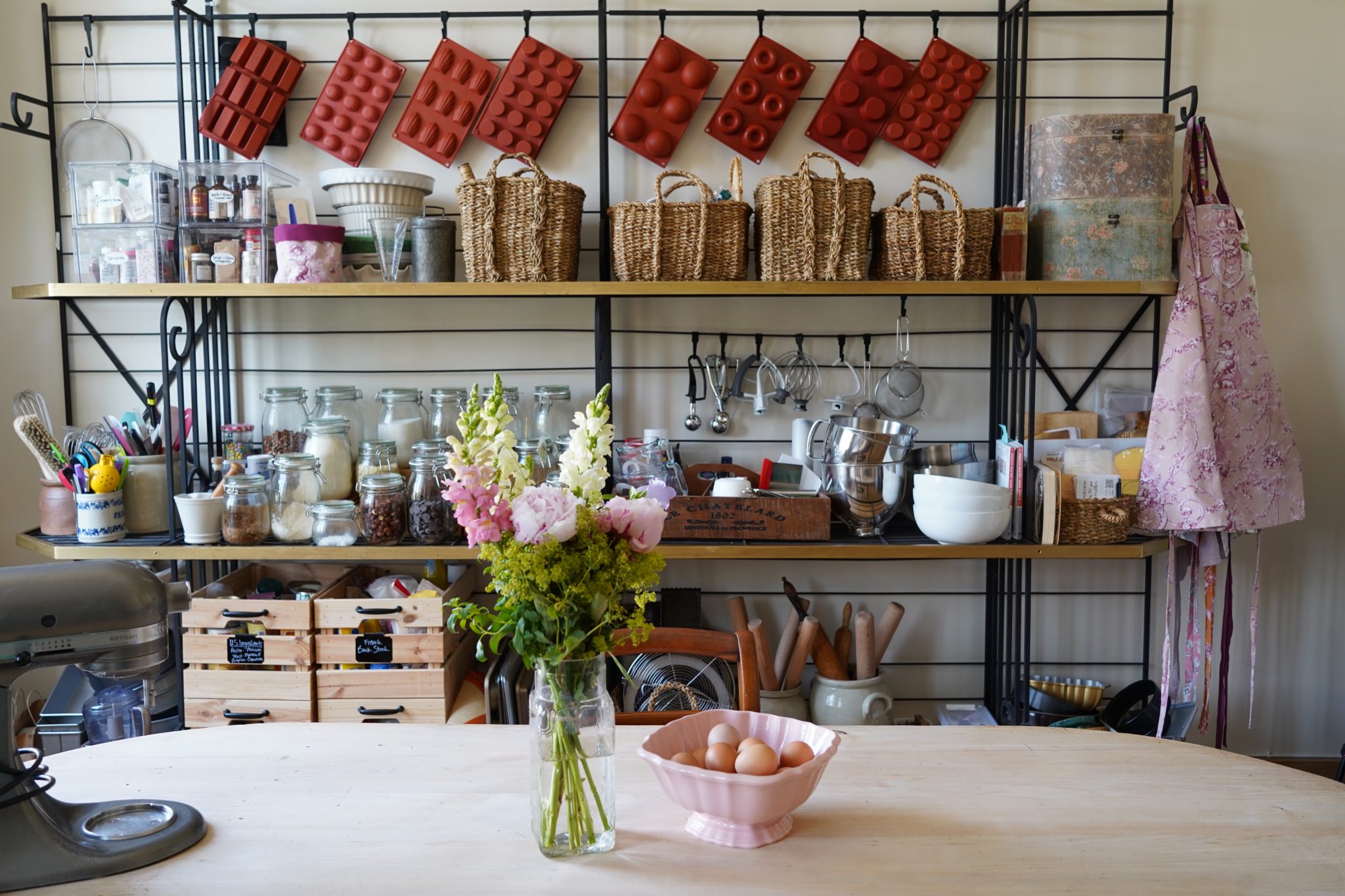
One of the easiest ways to organize your baking space is to divide it into a few basic zones based on what you do most often.
For example:
A decorating zone for icing bags, tips, turntables, scribes, brushes, and drying racks
A packaging zone for boxes, bags, toppers, ribbons, tags, and labels
A prep zone for rolling, cutting, and chilling dough
When each task has its own area, a few great things happen:
You spend less time moving supplies around
You clean more efficiently
You avoid mixing decorating tools with packaging materials
You feel calmer while you work
Even if you’re working out of a small kitchen or home bakery, having just a few designated areas can make a huge difference.
Organize by Category
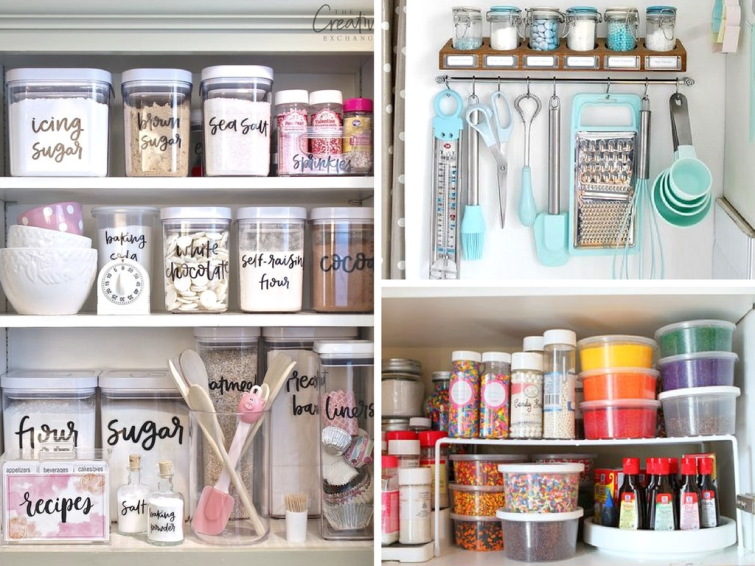
Just like with your inventory spreadsheet, physical organization works best when you group similar items together.
Some helpful categories to start with:
Packaging (boxes, bags, toppers, tags, ribbon) Pro Tip: Organize these in your bins by size!
Decorating tools (tips, couplers, brushes, scribes, airbrush supplies, piping bags)
Cutters & stencils (by holiday, theme, or size)
Ingredients & sprinkles
Business supplies (labels, stickers, thank you cards, order forms)
Instead of one giant drawer of “everything,” give each category its own home.
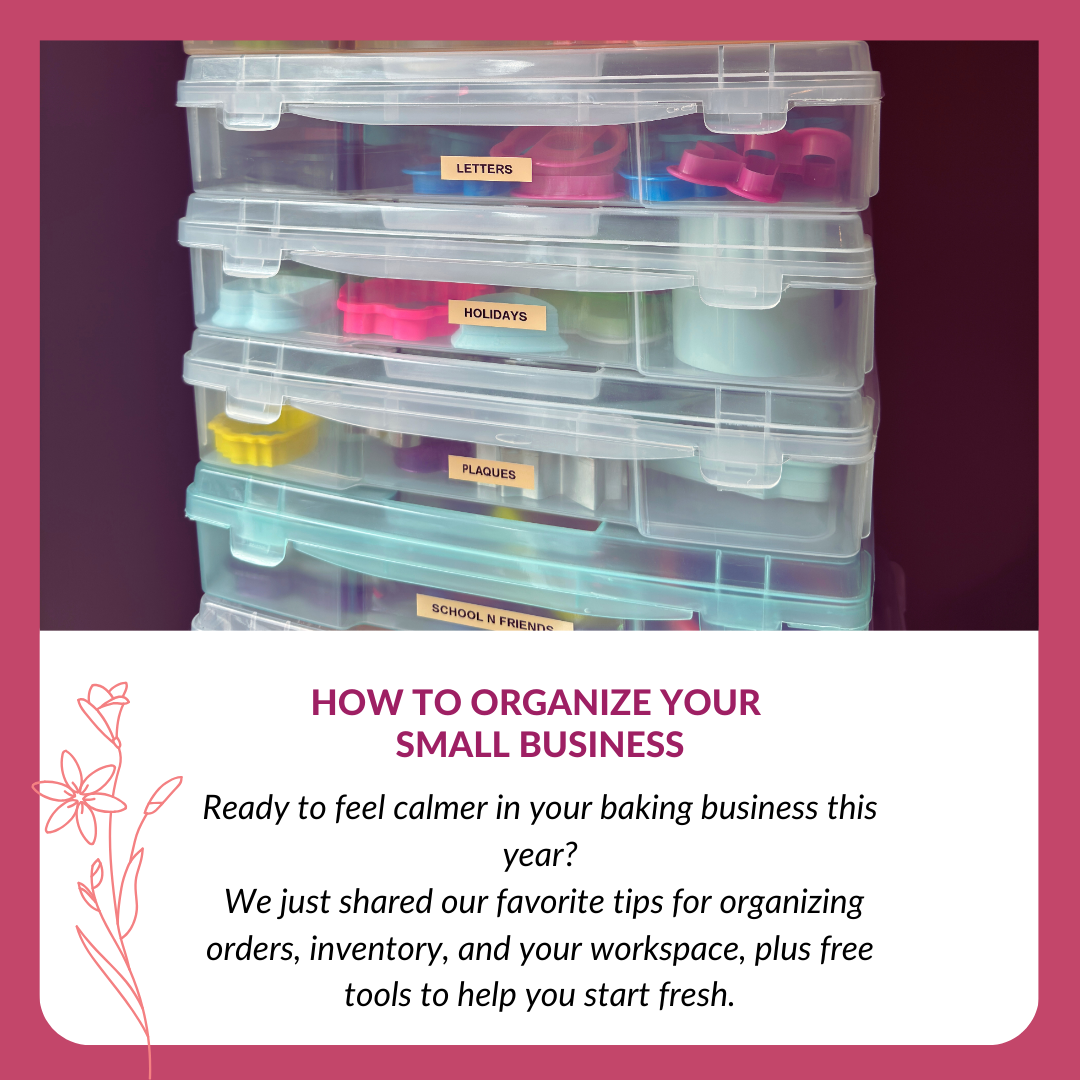
Clear bins are especially helpful because you can see what you have at a glance without having to pull out every item, and you can use a label maker on each bin so you know exactly what you're grabbing!
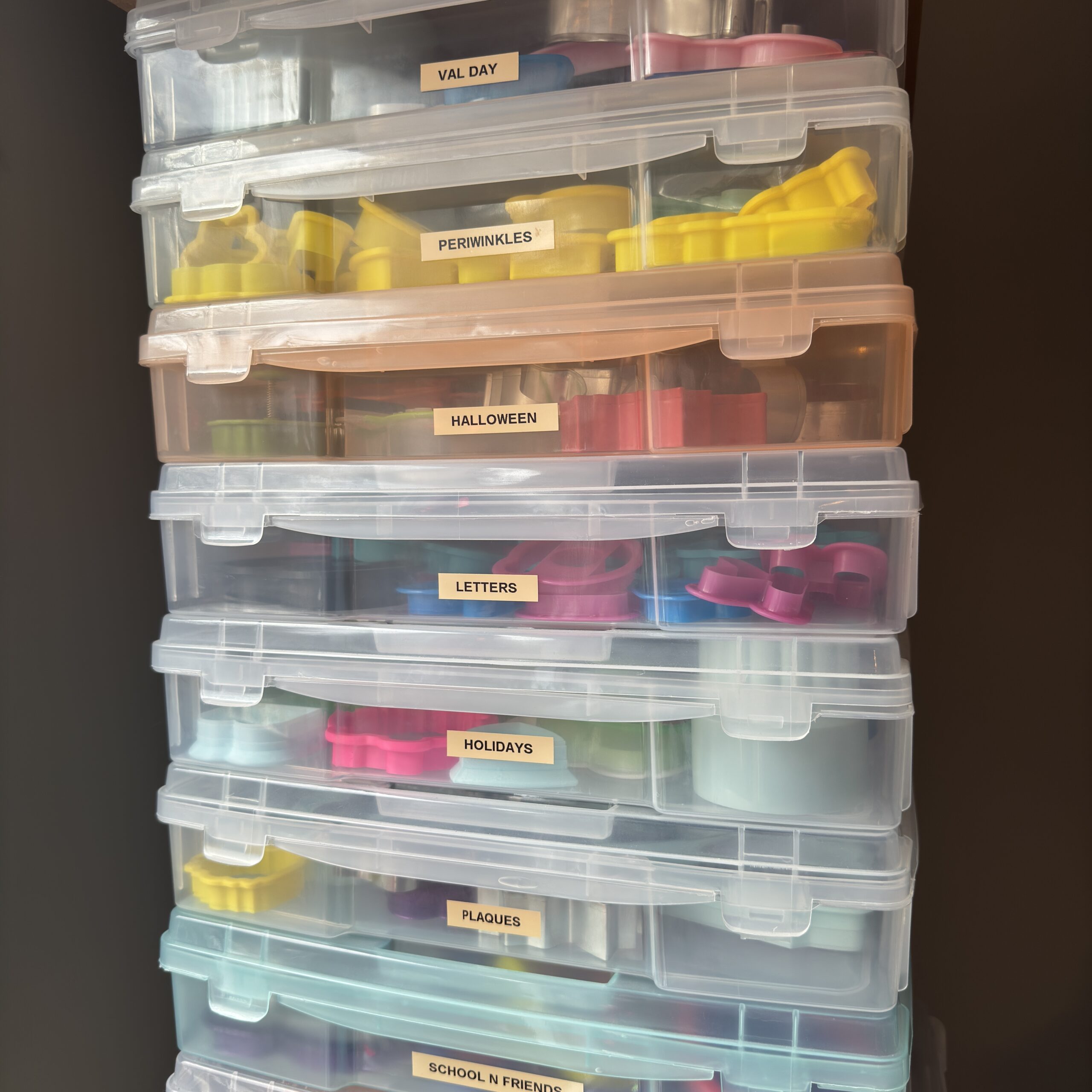
Cookie Cutter Organization
Let’s be honest, cookie cutters multiply on their own. It's just science.
We recommend:
Sorting cutters by holiday or theme
Using stackable bins
Labeling each bin clearly
This makes it much easier to pull designs for a set without emptying an entire drawer onto your counter.
Reset, Restock, and Get Ready for the Season Ahead
Once you’ve organized your inventory, streamlined your order system, and set up a workspace that actually works for you, you’ll start to notice something almost immediately — everything feels easier.
You know what you have.
You know what’s running low.
You know what orders and markets are coming up next.
And now, you can restock with confidence instead of guessing.
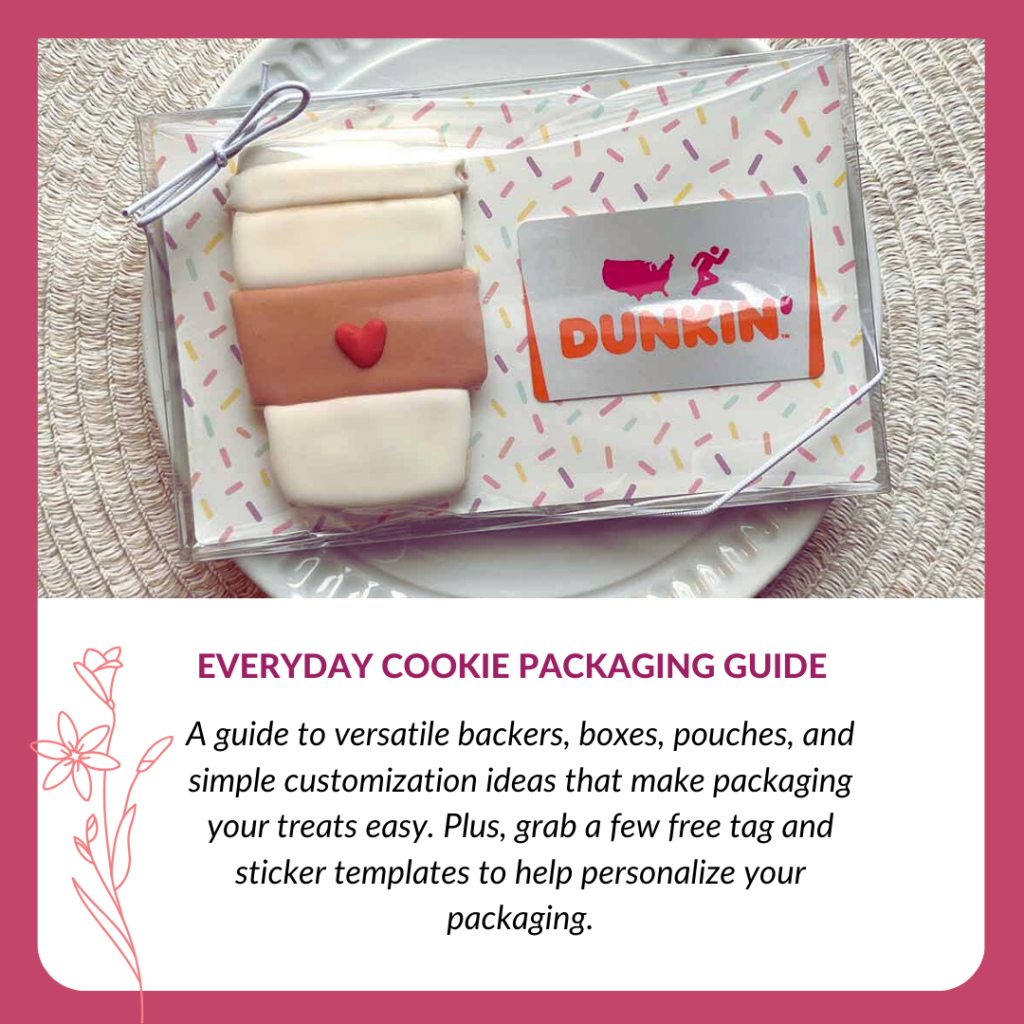
This is the perfect time to take a look at your most commonly used supplies and make sure you’re stocked on the essentials you reach for every single week; things like clear bags, boxes, toppers, backers, labels, and packaging basics.
It’s also the ideal moment to start preparing for the next busy season.
With Valentine’s Day and Easter right around the corner, knowing exactly what you already have on hand makes planning so much simpler. Instead of over-ordering or scrambling at the last minute, you can thoughtfully stock up on seasonal packaging and supplies that you know you’ll actually use.
Here’s to a calmer, more organized, and very sweet new year!